:: Kunagorn Sirikup :: C# Developer

11/8/56

Nuget Package Manager Introduce

วันนี้ขอแนะนำเกี่ยวกับ NuGet ซึ่งหลายๆคนคงรู้จักหรือคุ้นเคยกันมาบ้างแล้ว NuGet ถูกพัฒนาขึ้นมาโดย Microsoft ซึ่งทำหน้าที่รวม Library ต่างๆไว้เป็น Package เพื่อให้ผู้ใช้สามารถดาวน์โหลดและติดตั้ง Library ต่างๆได้สะดวก รวมถึงเมื่อมีการเปลี่ยนแปลงเวอร์ชั่นก็สามารถ Update ได้ง่าย โดยสามารถดาวน์โหลดและติดตั้งที่ http://nuget.codeplex.com

NuGet เป็น add-on ของ Visual Studio ซึ่งสามารถทำงานผ่าน GUI หรือ ใช้ Console ที่มีชื่อว่า Package Manager Console 

NuGet ติดตั้งผ่าน GUI 


จะแบ่งเป็น 3 หมวด คือ 
- Installed  หมายถึง Package ที่ถูกติดตั้งในเครื่องของเราไว้แล้ว
- Online หมายถึง Package ที่สามารถดาวน์โหลดได้
- Update หมายถึง Package ที่มีการ Update หรือเปลี่ยนแปลงเวอร์ชั่น

สำหรับการติดตั้งก็แค่ค้นหาชือ Package ที่ต้องการ จากนั้นกดปุ่ม Install ก็เสร็จแล้วครับ

NuGet ติดตั้งผ่าน Console


เริ่มต้นใช้งานโดยเข้าไปที่เมนู Tools >> Library Package Manager >> Package Manager Console 
ให้ใส่ Command Package ที่ต้องการ Install ลงไป โดยสามารถดูได้ที่ NuGet Gallery ในตัวอย่างนี้ผมจะทดลองติดตั้ง Bootstrap กันนะครับ โดยเข้าไปที่ NuGet Gallert ของ Bootstrap ที่ https://www.nuget.org/packages/Twitter.Bootstrap 


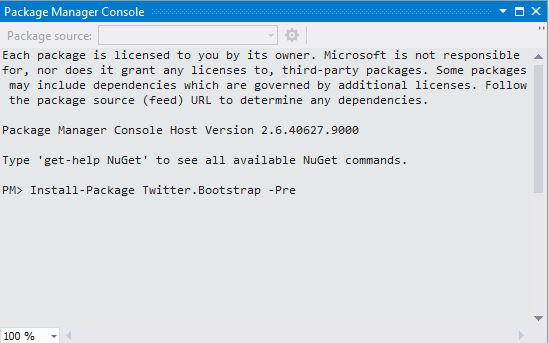
จะสังเกตว่าในช่องสีดำจะมี Command สำหรับติดตั้ง Bootstrap Package อยู่ ให้พิมพ์ Command ลงไปที่ Package Manager Console ดังรูป


NuGet จะเริ่มต้นติดตั้งโดยจะตรวจสอบว่ามี Package Dependency ไหนบ้างที่ต้องติดตั้งด้วย จากภาพข้างล่างจะเห็นว่า NuGet จะทำการติดตั้ง jQuery 1.9.1 ก่อนแล้วค่อยติดตั้ง Bootstrap รวมถึง Remove Package เก่าออกไป


เมื่อมาดูใน Solution จะเห็นว่า Package จะถูกติดตั้งเรียบร้อย โดยสังเกตว่าจะมี bootstrap.js , bootstrap.min.js และใน Content ก็จะมี css ของ bootstrap ถูกติดตั้งไว้ด้วย


รวมถึงภายใน Solution ก็จะมีไำฟล์ packages.config ที่ถูกเพิ่มเข้ามา ซึ่งมีหน้าที่สำหรับเก็บข้อมูล XML ของ Package ที่ถูกติดตั้งไว้ในโปรเจคว่ามีการใช้ Package อะไรและเวอร์ชั่นไหน


NuGet เป็นอีกหนึ่งเครื่องมือที่ช่วยให้การพัฒนาระบบทำได้รวดเร็วและสะดวกขึ้นมากเลยนะครับ ยังไงก็ลองเอาไปใช้กันนะครับ

9/8/56

Export Pdf จาก GridView ให้รองรับภาษาไทย ด้วย iTextSharp

ในการทำงานจริงทุกระบบจะต้องมีการสร้างรายงานหรือ Report โดยทั่วไปก็อาจจะใช้ Crystal Report เพื้อสร้าง Report แต่วันนี้เราจะมาลองสร้าง Report ด้วย Pdf โดยใช้การ Export ข้อมูลจาก GridView ซึ่งการใช้ Pdf มีข้อดีั เมือใช้งานจริงไม่ต้องติดตั้ง Component หรือโปรแกรมต่างๆให้วุ่นวาย เพราะสามารถแสดง Report ได้จาก Pdf ซึ่งเป็นโปรแกรมพื้นฐานในเครื่องอยู่แล้ว

เริ่มต้นสร้าง Class ขึ้นมาเพื่อใช้สำหรับทำงานเกี่ยวกับ Pdf ใช้ชื่อว่า PdfManager

using System;
using System.Collections.Generic;
using System.Linq;
using System.Web;
using System.Web.UI.WebControls;

/// <summary>
/// Summary description for PdfManager
/// </summary>
public static class PdfManager
{
    public static void ExportFromGridView(GridView gvControl)
    {

    }
}

ในตัวอย่างนี้ผมจะใช้ iTextSharp ซึ่งเป็น Library ตัวนึงในการทำงานเกี่ยวกับ Pdf เพื่อสร้างเอกสาร Pdf ได้ง่าย เพราะมี Method ต่างๆไว้สำหรับเีรียกใช้งานอยู่แล้ว สามารถติดตั้งได้โดยโหลดจาก Nuget หรือจาก Package Manager Console (อ้างอิง : https://www.nuget.org/packages/itextsharp/)


using System;
using System.Collections.Generic;
using System.Linq;
using System.IO;
using System.Web;
using System.Web.UI;
using System.Web.UI.WebControls;
using iTextSharp.text.pdf;
using iTextSharp.text;
using System.Data;

/// <summary>
/// Summary description for PdfManager
/// </summary>
public static class PdfManager
{
    public static void ExportFromGridView(GridView gvControl)
    {
        // สร้าง BaseFont 
        BaseFont bf = BaseFont.CreateFont(HttpContext.Current.Server.MapPath("~/Fonts/ANGSA_0.TTF"), BaseFont.IDENTITY_H, BaseFont.EMBEDDED);
        // กำหนดขนาดของ Pdf
        Document pdfDoc = new Document(PageSize.A4, 10, 10, 10, 10);

        try
        {
            // สร้าง instance ของ PdfWriter
            PdfWriter.GetInstance(pdfDoc, System.Web.HttpContext.Current.Response.OutputStream);
            pdfDoc.Open();

            // สร้าง Font จาก BaseFont 
            Font fnt = new Font(bf, 11);

            // สร้าง PdfTable จาก GridView Control
            PdfPTable PdfTable = new PdfPTable(gvControl.Columns.Count);
            PdfPCell PdfPCell = null;

            // Write Header ที่ PdfCell ใน PdfTable
            for (int column = 0; column < gvControl.Columns.Count; column++)
            {
                PdfPCell = new PdfPCell(new Phrase(new Chunk(gvControl.Columns[column].HeaderText.ToString(), fnt)));
                PdfTable.AddCell(PdfPCell);
            }

            // Write Data ที่ PdfCell ใน PdfTable
            for (int row = 0; row < gvControl.Rows.Count; row++)
            {
                PdfPCell = new PdfPCell(new Phrase(new Chunk(gvControl.Rows[row].Cells[1].Text, fnt)));
                PdfTable.AddCell(PdfPCell);
                PdfPCell = new PdfPCell(new Phrase(new Chunk(gvControl.Rows[row].Cells[2].Text, fnt)));
                PdfTable.AddCell(PdfPCell);
                PdfPCell = new PdfPCell(new Phrase(new Chunk(gvControl.Rows[row].Cells[3].Text, fnt)));
                PdfTable.AddCell(PdfPCell);
                PdfPCell = new PdfPCell(new Phrase(new Chunk(gvControl.Rows[row].Cells[4].Text, fnt)));
                PdfTable.AddCell(PdfPCell);
                PdfPCell = new PdfPCell(new Phrase(new Chunk(gvControl.Rows[row].Cells[5].Text, fnt)));
                PdfTable.AddCell(PdfPCell);
                PdfPCell = new PdfPCell(new Phrase(new Chunk(gvControl.Rows[row].Cells[6].Text, fnt)));
                PdfTable.AddCell(PdfPCell);
            }

            // Add PdfTable ลง pdfDoc
            pdfDoc.Add(PdfTable);
            // Close document
            pdfDoc.Close();
            // กำหนด ContentType เป็น application/pdf เพื่อ Response เป็น Pdf
            HttpContext.Current.Response.ContentType = "application/pdf";
            // กำหนดชื่อไฟล์ที่ต้องการ Export
            HttpContext.Current.Response.AddHeader("content-disposition", "attachment; filename=" + DateTime.Now.ToString("yyyyMMdd") + ".pdf");
            // Export Pdf
            System.Web.HttpContext.Current.Response.Write(pdfDoc);

            HttpContext.Current.Response.Flush();
            HttpContext.Current.Response.End();

        }
        catch (Exception ex)
        {
            HttpContext.Current.Response.Write(ex.ToString());
        }
    }
}

ในส่วน Code ข้างบนมี Code ที่น่าสนใจ คือ ในส่วนของการกำหนด BaseFont


ในส่วนมีข้อสังเกต คือ ผมได้สร้าง Path สำหรับเก็บ Font ภายใน Solution เพือให้สามารถอ้างอิงถึง Font นั้น โดยการ Embded ลงไป ทุกครั้งที่เราสร้าง Instance ของ Font ให้ส่ง BaseFont ไปด้วย ดังนี้

BaseFont bf = BaseFont.CreateFont(HttpContext.Current.Server.MapPath("~/Fonts/ANGSA_0.TTF"), BaseFont.IDENTITY_H, BaseFont.EMBEDDED);

ตอนนี้ก็สร้าง Class สำหรับจัดการเกียวกับการ Export ข้อมูลเรียบร้อย จากนั้นสามารถเรียกใช้งาน ดังนี้

Font fnt = new Font(bf, 11);

จาก Code ช้างบนมีประโยชน์ คือ จะช่วยแก้ปัญหาในเรื่องของ Pdf ไม่สามารถแสดงภาษาไทย 

protected void btnExport_Click(object sender, EventArgs e)
{
    try
    {
        PdfManager.ExportPdf(gvColourFormula);
    }
    catch (Exception ex)
    {
        
    }
}


8/8/56

Export ข้อมูลจาก GridView ไปยังไฟล์ Excel

การใช้งาน GridView แสดงข้อมูล เราสามารถ Export ข้อมูลออกมาเป็น Format ต่างๆ เช่น pdf, excel , word ฯลฯ

เริ่มต้นให้ทำการ override method ชื่อ VerifyRenderingInServerForm เพื่อควบคุมการ Render ASP.NET Control ขณะ RunTime (อ้างอิง : http://msdn.microsoft.com/en-us/library/system.web.ui.page.verifyrenderinginserverform.aspx)

public override void VerifyRenderingInServerForm(Control control)
{
        
}

จากนั้นมาสร้่าง method สำหรับสร้าง Export Excel ในตัวอย่างนี้ผมจะเริ่มต้นด้วยการสร้าง Class ชื่อ GridViewExport ซึ่งเป็น Static Class เพือเรียก Method Export

using System;
using System.Collections.Generic;
using System.Linq;
using System.IO;
using System.Web;
using System.Web.UI;
using System.Web.UI.WebControls;

/// <summary>
/// Summary description for GridViewExport
/// </summary>
public static class GridViewExport
{
    public static void Export(string fileName, GridView gv)
    {
        //
        // TODO: Add constructor logic here
        //
    }
}

จากนั้นสร้าง method ชื่อ PrepareControlForExport เืพื่อ Replace Control ต่างๆ ลง LiteralControl โดย โดย Literal Control นั้น Inherit มาจากคลาส System.Web.UI.Control  ช่วยให้สามารถควบคุมรูปแบบการแสดงผลพวก Style ต่างๆได้ รวมถึงการสร้าง tag Label ดังนั้นจึงช่วยให้ HTML ที่ได้สะอาดและเรียบร้อยกว่า

/// <summary>
/// Replace any of the contained controls with literals
/// </summary>
/// <param name="control"></param>
private static void PrepareControlForExport(Control control)
{
    for (int i = 0; i < control.Controls.Count; i++)
    {
        Control current = control.Controls[i];
        if (current is LinkButton)
        {
            control.Controls.Remove(current);
            control.Controls.AddAt(i, new LiteralControl((current as LinkButton).Text));
        }
        else if (current is ImageButton)
        {
            control.Controls.Remove(current);
            control.Controls.AddAt(i, new LiteralControl((current as ImageButton).AlternateText));
        }
        else if (current is HyperLink)
        {
            control.Controls.Remove(current);
            control.Controls.AddAt(i, new LiteralControl((current as HyperLink).Text));
        }
        else if (current is DropDownList)
        {
            control.Controls.Remove(current);
            control.Controls.AddAt(i, new LiteralControl((current as DropDownList).SelectedItem.Text));
        }
        else if (current is CheckBox)
        {
            control.Controls.Remove(current);
            control.Controls.AddAt(i, new LiteralControl((current as CheckBox).Checked ? "True" : "False"));
        }

        if (current.HasControls())
        {
            GridViewExport.PrepareControlForExport(current);
        }
    }
}

จากนั้นก็มาแก้ไข Method Export โดยเพิ่ม Code ดังนี้

public static void Export(string fileName, GridView gv)
{
    try
    {
        HttpContext.Current.Response.Clear();
        HttpContext.Current.Response.Charset = "utf-8";
        HttpContext.Current.Response.ContentEncoding = System.Text.Encoding.GetEncoding("windows-874");
        HttpContext.Current.Response.AddHeader("content-disposition", string.Format("attachment; filename={0}", fileName));
        HttpContext.Current.Response.ContentType = "application/ms-excel";
        using (StringWriter sw = new StringWriter())
        {
            using (HtmlTextWriter htw = new HtmlTextWriter(sw))
            {
                htw.WriteLine(@"<!DOCTYPE HTML PUBLIC ""-//W3C//DTD HTML 4.0 Transitional//EN"">");
                htw.WriteLine("<meta http-equiv='Content-Type' content='text/html; charset=windows-874'>");

                //  Create a form to contain the grid
                Table table = new Table();
                //  include the gridline settings
                table.GridLines = GridLines.Both;

                //  add the header row to the table
                if (gv.HeaderRow != null)
                {
                    GridViewExport.PrepareControlForExport(gv.HeaderRow);
                    table.Rows.Add(gv.HeaderRow);
                }

                //  add each of the data rows to the table
                foreach (GridViewRow row in gv.Rows)
                {
                    GridViewExport.PrepareControlForExport(row);
                    table.Rows.Add(row);
                }

                //  add the footer row to the table
                if (gv.FooterRow != null)
                {
                    GridViewExport.PrepareControlForExport(gv.FooterRow);
                    table.Rows.Add(gv.FooterRow);
                }

                //  render the table into the htmlwriter
                table.RenderControl(htw);

                //  render the htmlwriter into the response
                HttpContext.Current.Response.Write(sw.ToString());
                HttpContext.Current.Response.End();
            }
        }
    }
    catch (System.Threading.ThreadAbortException ex)
    {

    }
}

ตอนนี้เราก็สามารถ Export ข้อมูลจาก GridView ไปยังไฟล์ Excel ได้แล้ว สามารถเรียกใช้งานได้ ดังนี้

GridViewExport.Export("report.xls", GridviewControl);


ในกรณีที่ Button ถูกเรียกภายใต้ UpdatePanel อาจเกิดปัญหาได้ ให้เพิ่ม Trigger ไปด้วย ดังนี้

<Triggers>
      <asp:PostBackTrigger ControlID="ButtonID" />
</Triggers>